1. Removing the Splash Screen
One of the most annoying parts of every game's start-up is that pesky splash screen which usually doesn't do anything meaningfully, but displays a logo of the game publisher and increases the time to load the game. Red Alert 3 has a very "user friendly" splash screen, because it's short and it can be canceled via pressing ESC key. But, why should we even have to press a key to cancel it, if we can completely remove it.
To remove the splash screen browse to you Red Alert 3 installation folder (C:\Program Files\Electronic Arts\Red Alert 3 is the default path) and go to theData\Movies folder, find a file called RA3_EA_logo.vp6 and either delete it, or rename it to whatever you want.

Click on the picture to see the full size image.
Now you can start the game and there won't be any splash screen during start-up.
2. Decrease Replay Freeze Times
The most annoying part of watching replays is that Receiving data. Please wait for a moment... error. There is a trick which decreases the number of those errors and there is also a way to decrease the waiting when that error occurs.
- To decrease the number of Receiving data errors, it is good practice to hit ESC when the replay loads to pause the game and wait for a couple of seconds. The more you wait; your chances of getting the error are smaller, because the game reads the replay in advance while the game is paused. After the game is paused, you can even use ALT+TAB to switch to another application and do other things, like browse GameReplays.org.
- When the replay freezes because of Receiving data error, most users usually disable fast forward, especially if that happens while you were not fast forwarding, so the game pauses for a very long time. This is the catch, when you get Receiving data, immediately press the fast forward button. The default button is the period key, '.'. That tells the game to calculate much faster, so the waiting time is shorter. When the game continues, stop fast forwarding.
3. Command Line Switches
Red Alert 3 supports many helpful command line switches and none of them are covered in the user guide which you get with the game. To use switches, you have to open Properties of the Red Alert 3 shortcut and add the switch separated with a space to the end of the Target field, like in the picture below:

Here is the list of useful switches:
- -win - Starts the game in the windowed mode. The size of the window is determined by the resolution that is set in the game.
- -runver X.Y - Starts the version of the game specified with X.Y, e.g. if you want to start version 1.8 of the game, you would type -runver 1.8
- -replayGame "Full path to the replay file" - Launches the replay the same way as when you click on a replay file in the explorer.
- -modConfig "Full path to the .skudef" - Starts a RA3 mod specified by the *.skudef file, e.g. if you want to start the mod that is in the folder:
D:\Red Alert 3 Mods\MyMod\MyMod.skudef, you can start it with:
-modConfig "D:\Red Alert 3 Mods\MyMod\MyMod.skudef - -xres Width - Starts the game with the horizontal resolution specified withWidth. Height is read from the RA3 settings, e.g. -xres 1024 would start the game with the resolution 1024x"height from settings".
- -yres Height - Starts the game with the vertical resolution specified withHeight. Width is read from the RA3 settings, e.g. -yres 768 would start the game with the resolution "width from settings"x768.
4. Watch a Replay "Through Player's Eyes"
Usually when we download a replay, we start it by double-clicking on it in explorer. But, when we start the replay that way, there is no option to watch it "through player's eyes". To be able to do this, we have to run the game and load the replay from the Replay Theater. Make sure the Add Commentary is unchecked. Now in theSpectator menu, after you select a player, you should be able to change the camera movement from Free Roam to Player.
5. Chat Commands
Red Alert 3's online interface support many chat commands that help you get in contact with other online players. Every chat command starts with a slash ('/'). Here is the list of all commands:
- /help - Prints the list of all available commands,
- /tell PlayerName Message - This will send the Message to PlayerName
- /reply ReplyMessage - When you receive a message from a player, you don't need to use the tell command, use reply instead. reply sends a message to the last player you received the message from,
- /friend PlayerName - Adds PlayerName to your Friends List.
- /ignore PlayerName - Adds PlayerName to your Ignore List.
- /me - Prints your nick name,
- /players - Prints how many players are online and how many matches are in progress.
- /afk - Notifies everyone in the chat room that you are away from keyboard,
- /whisper PlayerName Message - This command is not printed by the helpcommand, but it's the same command as tell.
6. Restore *.RA3Replay File Association
After you install Red Alert 3 it automatically associates itself to open *.RA3Replay files. But, sometimes that association breaks and we are not able to open replays from Windows Explorer.
Windows XP
To fix the broken association, go to Start->Control Panel->Folder Options and open theFile Types tabs. In the list of extension find RA3Replay and click Advanced. If RA3Replayis not in the list, click the New button, in File Extension: type RA3Replay and press OK.

Now press Advanced, click on the Change Icon... button, then browse to the Red Alert 3 installation directory, select the RA3.exe, select the first icon and press OK.
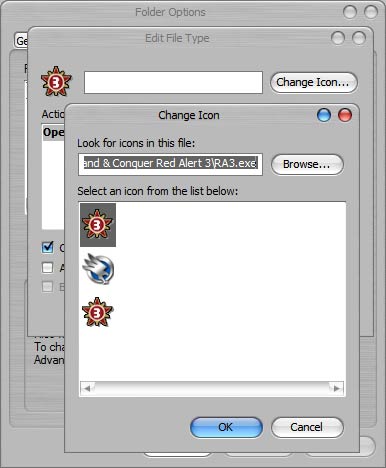
Now we need to make an Open action. We do this by clicking on the New... button, in theAction: box type Open, then click the browse button and select your RA3.exe file from the RA3 installation directory. Now in the Application used to perform action: box add -replayGame "%1" to the end of line, behind the quotation mark, separated by one space and press OK as shown in the picture below.

Press OK once more and then Close to close the Folder Options window.
Windows Vista
Vista doesn't have a File Type dialog like XP does, so we have to use a freeware third party program to do this. Download Creative Element Power Tools, install and run them. Now start the File Type Doctor utility.

You should get a window like this:

Find .RA3Replay in the list and select it. If it's not in the list you can add it by clicking theNew and typing .RA3Replay, with a period for an extension and press OK.

To change the icon, click Change button and browse to the RA3.exe in the RA3 installation directory and select the first icon. Now click on the Add button to add an Open action. For the name of the action type Open, for the application browse to RA3.exe, for command line arguments type: -replayGame "%1" and press Accept. See the picture below for details.

Close File Type Doctor and Creative Element Power Tools to finish the job.
7. Find/Change Your Serial Number Without Reinstalling the Game
If you installed the game and lost your RA3 box which has the serial number written on the back of the guide book, don't worry it is very easy to find your serial and save or change it.
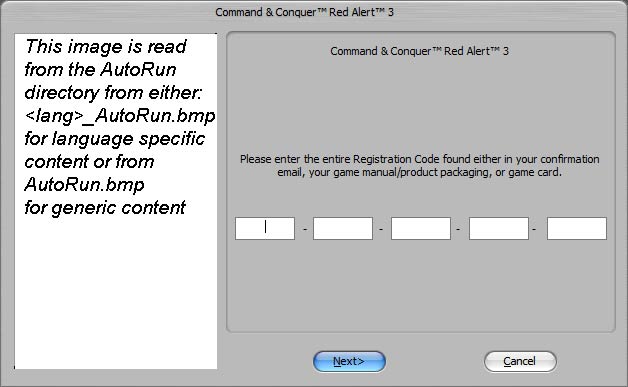
The easiest way to change your serial is to go to the Support folder in the Red Alert 3 installation folder and run two programs. The first one is Red Alert 3_uninst.exe, which removes the serial.

The second one is Red Alert 3_code.exe which allows you to input a new serial:
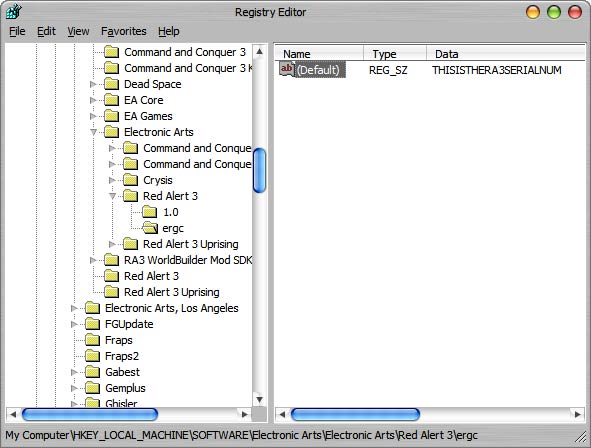
To retrieve your serial go to Start->Run and type regedit, in the Registry Editor on the left side navigate to: HKEY_LOCAL_MACHINE\SOFTWARE\Electronic Arts\Electronic Arts\Red Alert 3\ergc. On the right side there should be a value called Default and that value is your serial number. To save it, double-click on the value name and copy the key. You can also change the serial this way by typing the new serial in the same format as the old one was without the dashes.

No comments:
Post a Comment